The UX of your Figma File Structure
It's 2026. Discussing anything other than AI feels like a sin. Yet here I am feeling the need to document something as basic as how we organize our Figma file. This note is slightly inspired by Jayneil Dalal’s video on how different designers organize their Figma files.
The Problem
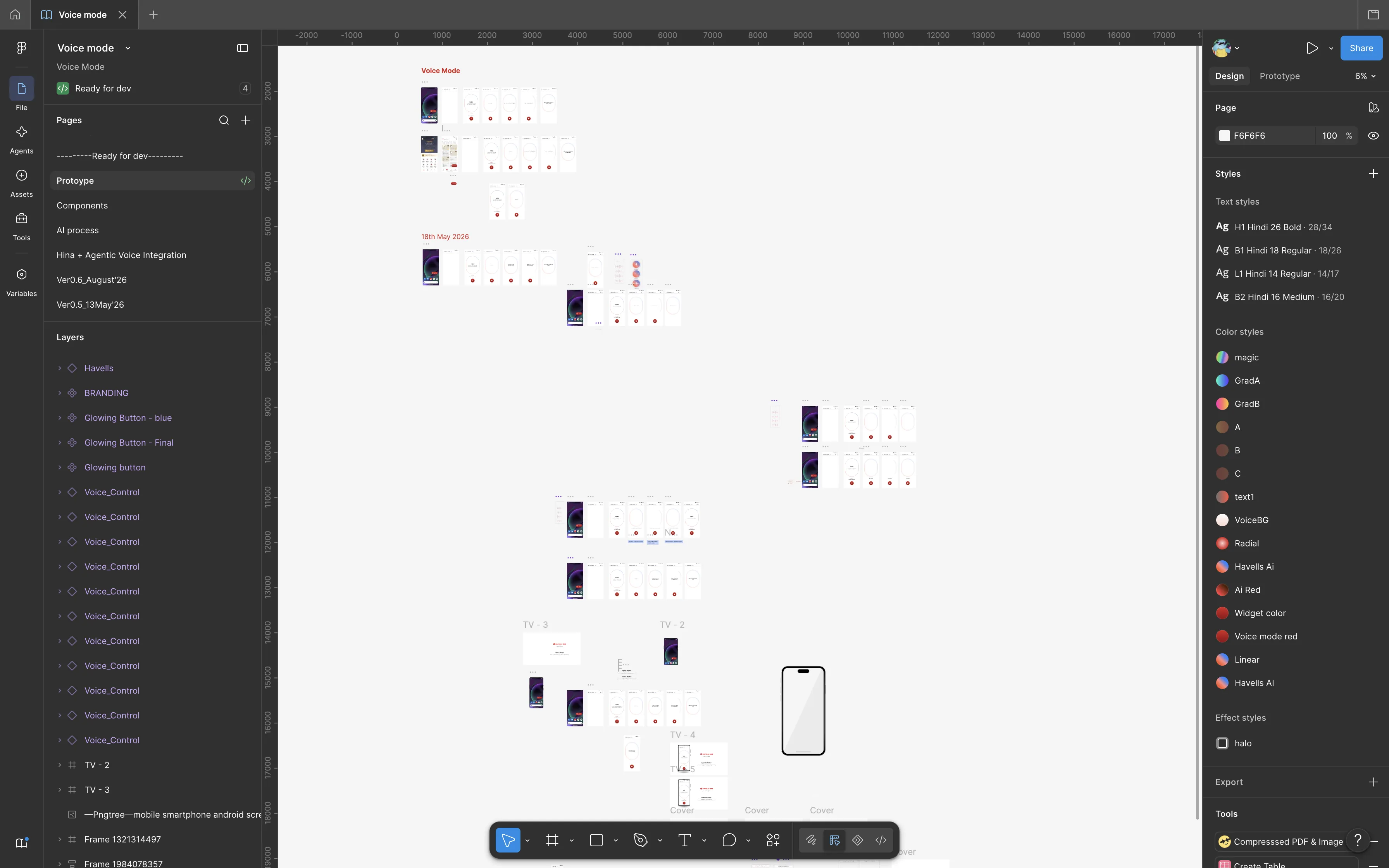
Finding the right screen of a flow, the latest version, should be as quick as possible and clear to everyone using the Figma file.
Without having a common structure to organize our Files there will always be dependency on the single designer who created the file to locate the latest version of the screen.
In our organization, the production ready Figma files are used by different teams.
Developers use it to build features. QA teams use it to validate implementations. Marketing teams use it to create campaign assets. Product managers use it to review experiences. New designers rely on it during onboarding and handovers.
Most of the above stakeholders have one goal - find the latest Figma file asap.
A screen was easy to find if you were the person who created it. For everyone else, it was a task. It also increased the dependency on single person’s availability to provide the latest version of a screen and if that person was not available then it hampered other team’s workflow.
Scope - The Solution must
- Help stakeholders find the latest production ready designs asap on Figma.
- Help designers preserve the history and evolution of designs and flows.
The Solution
A Quick Note on Context
My goal here is not to prescribe a universal standard. This is simply a structure that has worked well for our team and significantly reduced confusion across design, development, QA, and marketing.
Arranging all Figma Pages
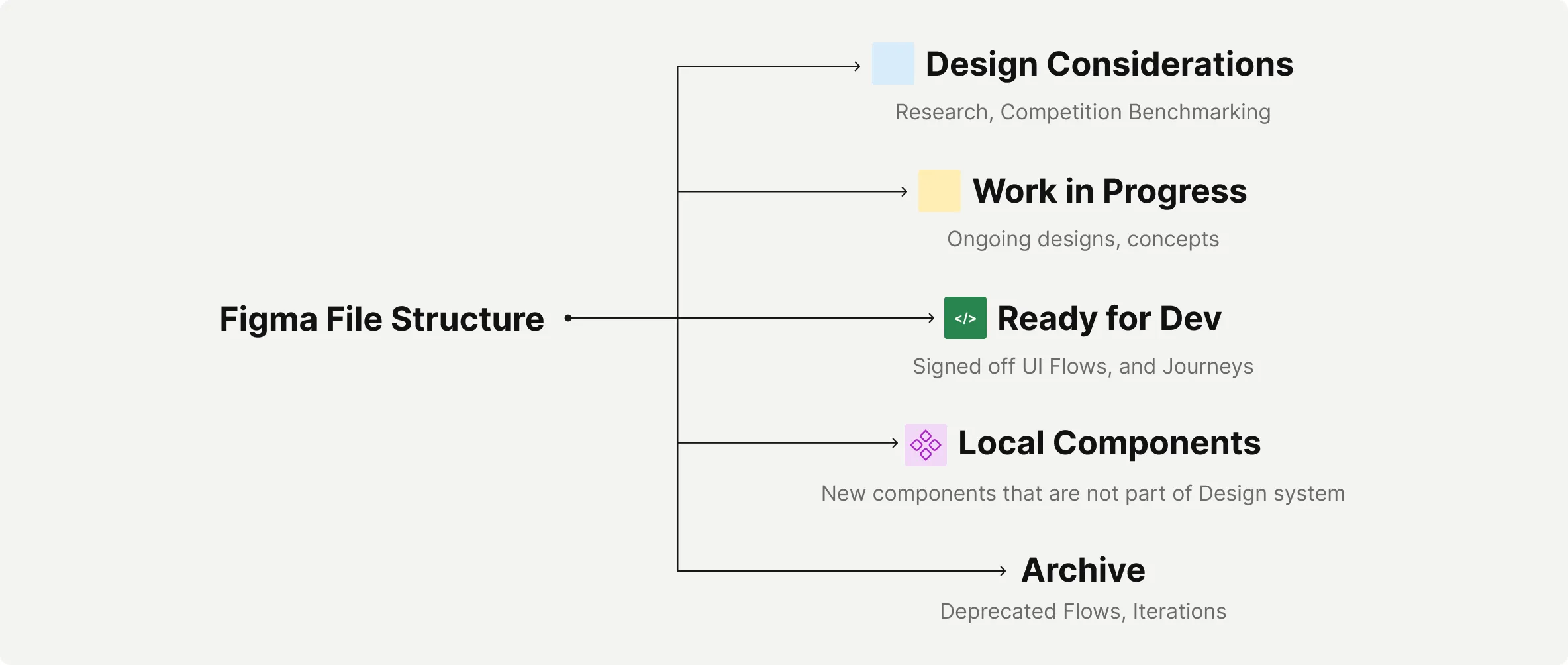
We organize a Figma pages into following main sections:
- Design Considerations - Every input that we collect before starting the design process. E.g. Stakeholder interviews, Competition benchmarking, Mood boards, Research findings, Feature list etc.
- Ready for Dev - Every screen, flow, journey that is production ready from UX team’s side is located under this section. All stakeholders who might need a production ready UI design or flow refers only to this section of the Figma file.
- Work in Progress - Pages in this section indicate that the designer is currently working on these deliverables and anything located under this section should be considered for development, design critique, design system audit or any other reviews.
- Local Components - This houses all the new components that were not originally part of the Design system. We audit these pages later on to add them to the design system.
- Iterations/Archive - This section houses the different approaches we considered before finalizing that one flow which was production ready. We preserve this to:
- Preserve the explorations for emotional values of it. Designers sometimes like to pride in how many different possible solutions for the same problem.
- Document the process - It is the divergent part of every design process. It shows how many different solutions are possible for the same problem.
- Defend our decisions - A lot of time in our profession we have to deal with subjective opinions. Stakeholders often come in with strong opinions with e.g. how the speed control for a fan should look in the UI. With explorations documented we often time get to show stakeholders that their idea was already explored while designing but not finalized for several reasons.
- Thumbnail - A page where file’s thumbnail is kept.
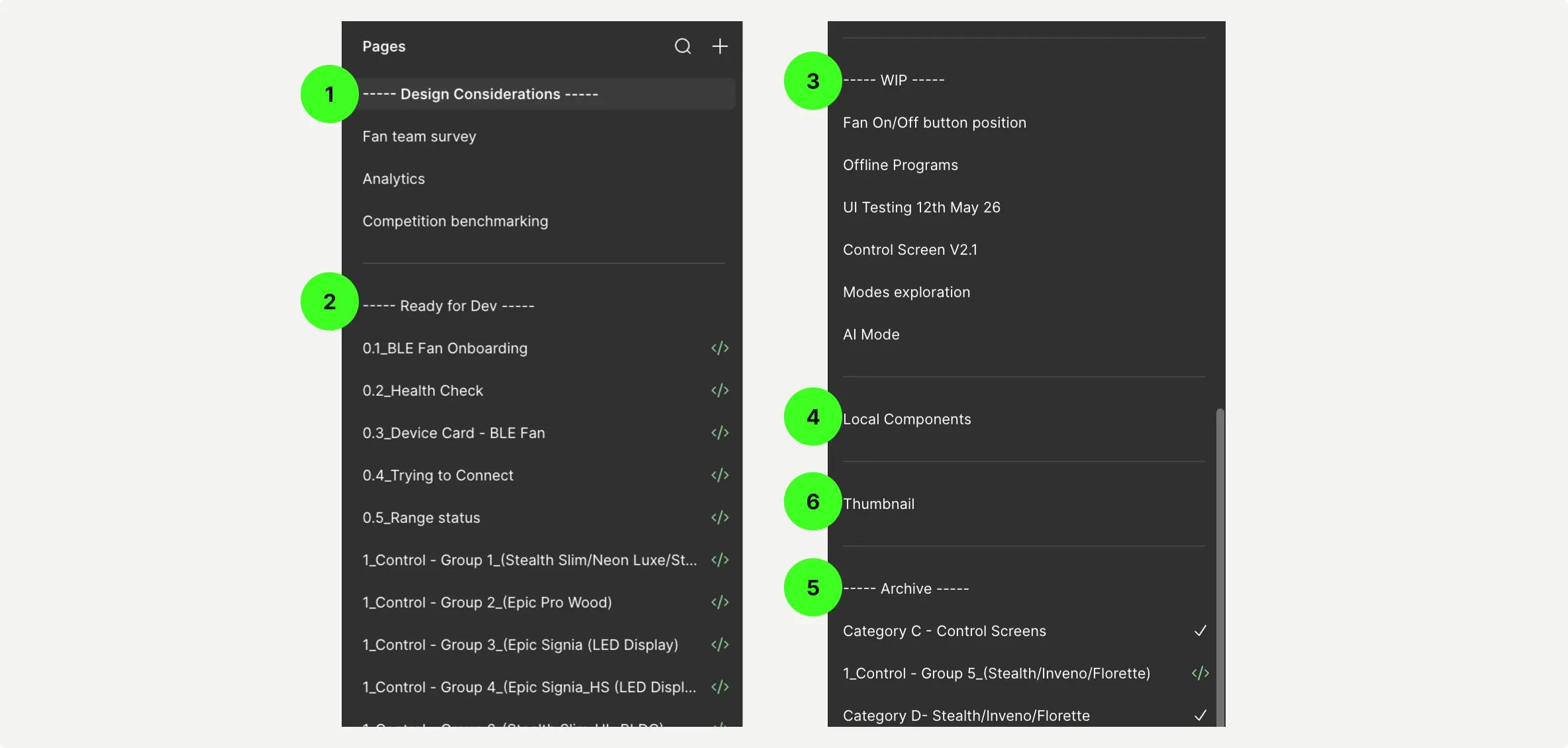
The above file structure is made clear to all stakeholders will use the Figma file at some point.
Arranging a single Figma Page
Next comes how to locate a screen or flow you’re looking for. One obvious answer is search for it using Figma’s search function but designers don’t always name their frames keeping search in mind.
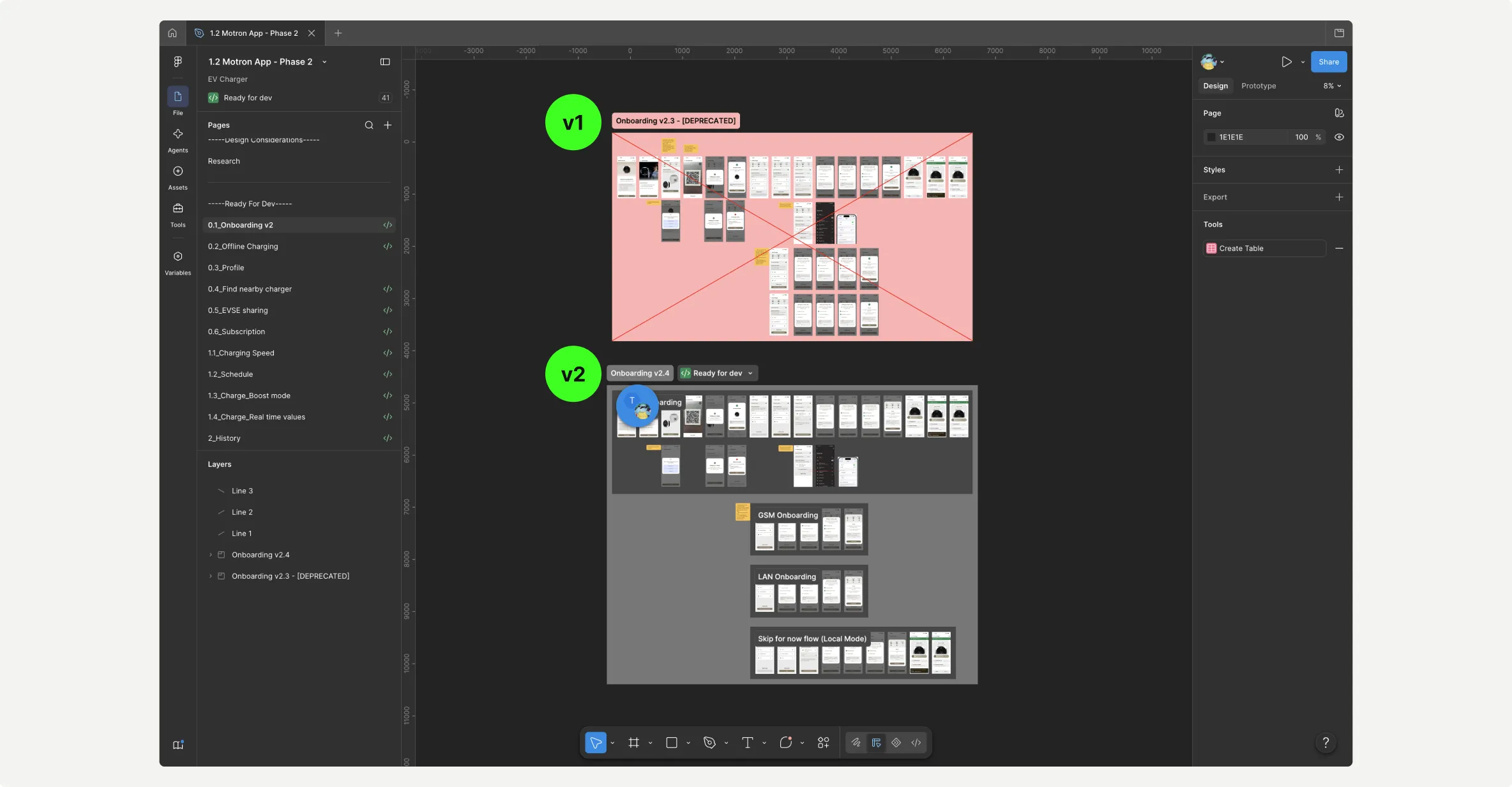
We ship production ready flows as ready for Sections. Each section represents a flow or a feature or a journey or use case .
If a flow/feature/journey/use case gets deprecated then it is marked as [DEPRECATED] with bold red cross on the section and a new section is kept right below it with Ready for Dev mark. This way everyone working on the file has visibility of what’s latest. I personally also keep one page for one feature or journey. Within each feature there can be multiple flows or use cases.
Pros and Cons of This Approach
Like any organisational system, this approach has trade-offs.
We've found the benefits worthwhile for the way our team operates.
Pros
1. Saves Time Throughout the Lifecycle of a Project
The biggest advantage has been time savings at multiple stages.
- Faster onboarding of new designers.
- Faster knowledge transfer sessions.
- Less time spent explaining where things are located.
- Faster navigation for developers, QA teams, and product managers.
- Easier reviews because everyone knows where to look.
The benefit compounds over the lifetime of a product.
2. Reduces Mistakes Caused by Referencing the Wrong Designs
Historically, one of the most common sources of confusion was people referencing outdated screens.
By establishing Ready for Dev as the source of truth, developers and QA teams can quickly identify the correct flow.
We haven't measured this formally, but we have observed a noticeable reduction in implementation errors caused by people referring to older designs.
3. Makes Product Scope Visible
Every user flow receives:
- Its own page.
- Its own page number.
This creates a visible inventory of the product.
At any point, you can understand:
- How many flows the product contains.
- How much design work has been completed.
- How the product has evolved over time.
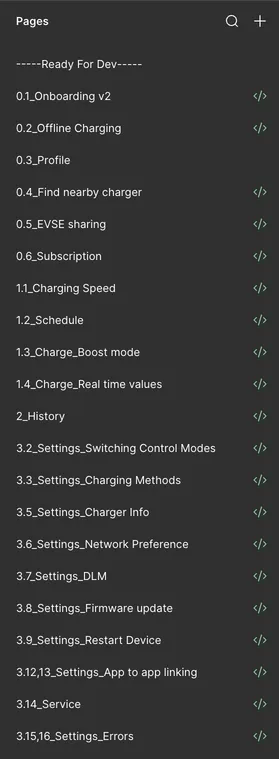
It also provides a useful way to appreciate the amount of work that has gone into a product over multiple releases.
Cons
1. The Number of Pages Can Grow Quickly
The most obvious downside is that the page list can become quite long.
As products mature, the number of user flows naturally increases. A large product can easily contain dozens of pages.
For someone opening the file for the first time, this can look intimidating.
We've found that the predictable structure outweighs this drawback, but it is a legitimate trade-off.
2. May Not Suit Every Team Structure
This approach evolved in an environment where a product file is typically owned by a single designer.
Teams with multiple designers working simultaneously in the same file may require additional processes around ownership, branching, reviews, and governance.
The underlying principles remain useful, but the implementation may need to be adapted.
What Improved After Adopting This Structure
We haven't measured the impact scientifically, so I won't claim exact numbers.
However, we've consistently observed:
- Fewer instances of developers and QA teams referring to outdated designs.
- Faster onboarding of new designers.
- Faster knowledge transfer sessions.
- Less confusion around version ownership.
- Easier navigation across large product files.
- Clearer communication across design, development, QA, and marketing teams.
These observations were significant enough for us to standardise the approach across our team.
Closing Thoughts
Design history is important.
Research is important.
Exploration is important.
None of them should make it harder to find the latest approved design.
A production Figma file is a shared operational asset, not a personal archive.
If a developer, QA engineer, marketer, product manager, or new designer can open a file and immediately identify the correct user flow, the structure is doing its job.
That's the standard we optimise for.